
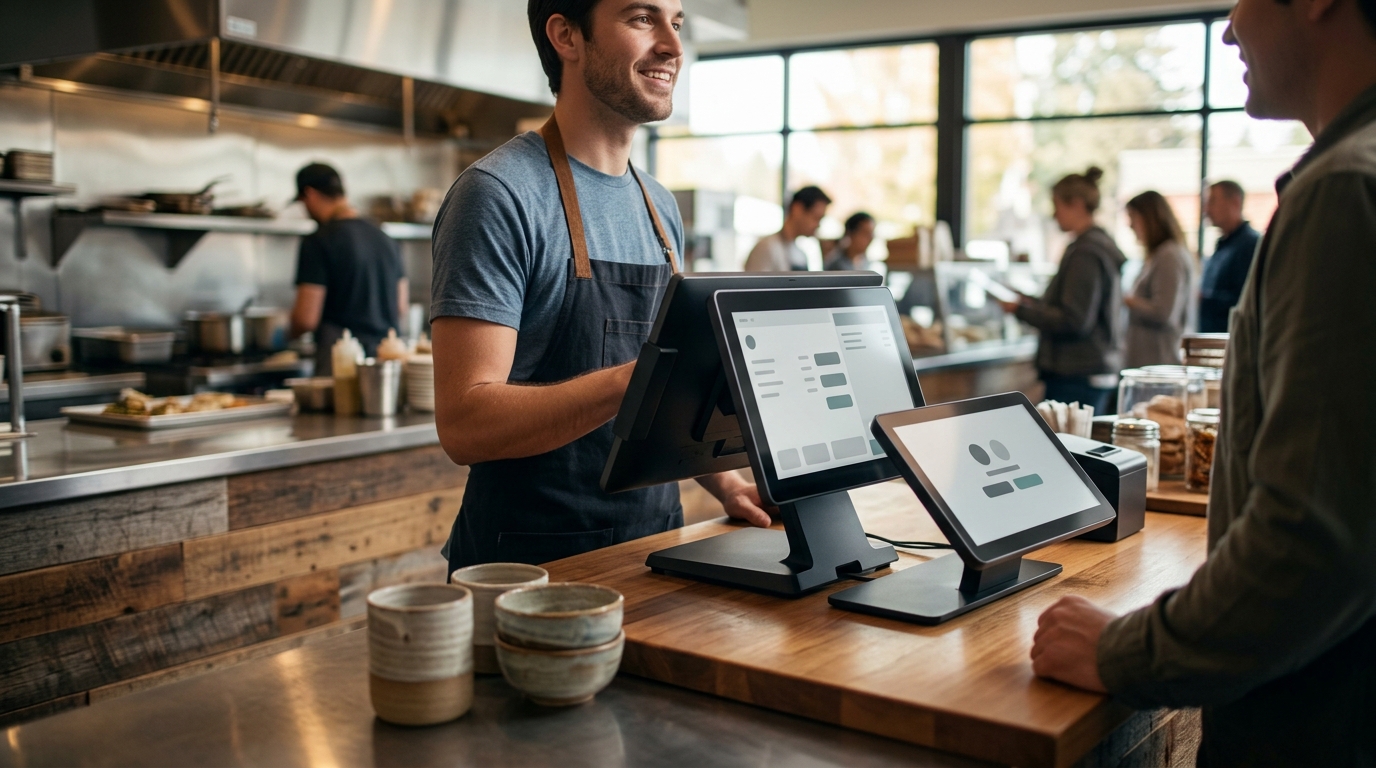
For most quick-service counter operations, a staff-operated countertop terminal with a dual-screen configuration fits better than a self-service kiosk. This setup allows staff to manage complex orders, handle exceptions, and maintain eye contact with guests. This guide covers hardware selection, payment integration, and spatial planning for Oregon and Washington operators.
Countertop Terminal Hardware
Countertop terminal hardware is the physical interface where staff enter orders and process payments at the register. In a quick-service environment, this device must withstand high-volume use while remaining responsive. The hardware choice dictates the speed of the entire checkout process. A reliable terminal prevents bottlenecks during peak hours.
Performance and Durability
Quick-service counters experience constant physical interaction. Terminals need robust build quality to handle daily wear and tear. Look for devices with large touchscreens that remain responsive even when staff are wearing gloves or working in fast-paced conditions. The hardware should integrate seamlessly with your existing point of sale software.
Connectivity Options
Dual Screen Configuration
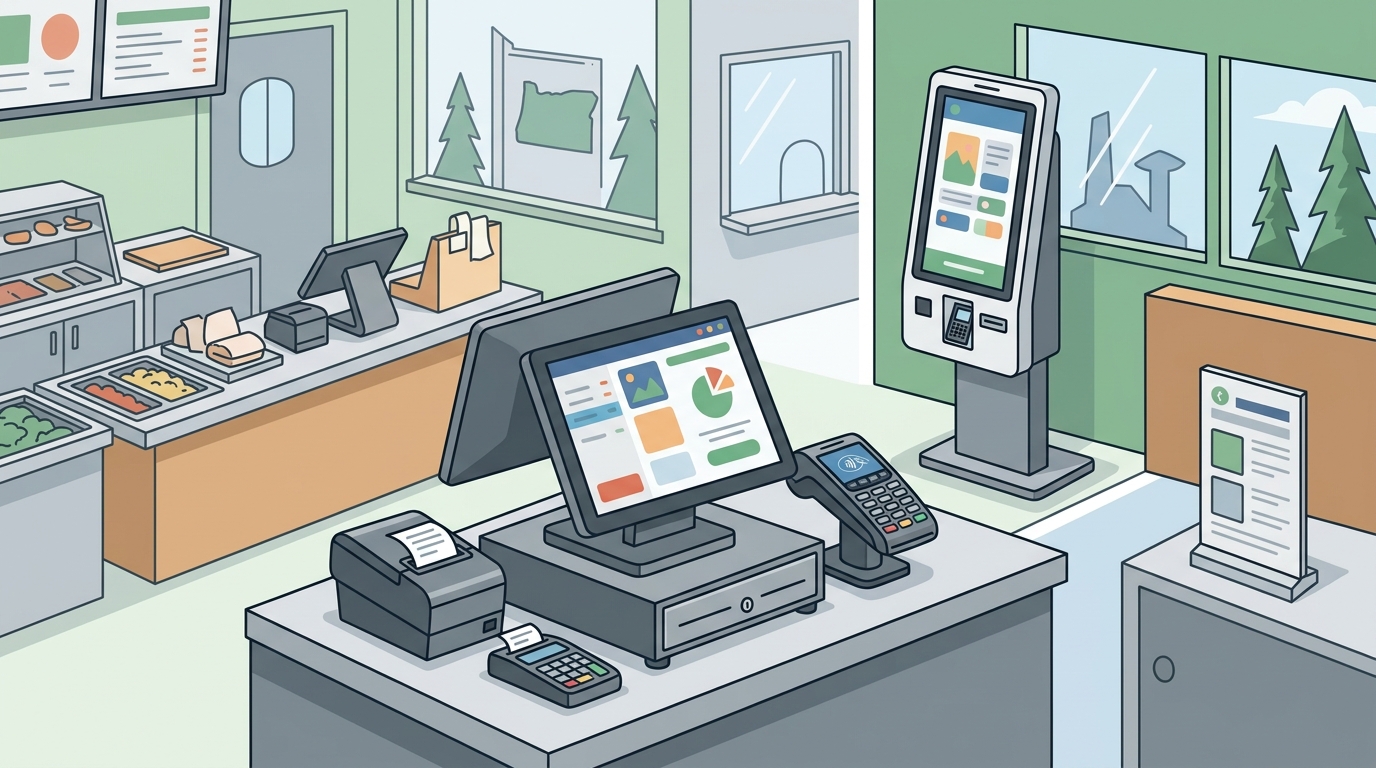
Dual screen configuration is a setup where the staff-facing terminal is paired with a customer-facing display. This arrangement allows guests to see their order details, total cost, and payment options in real time. Transparency builds trust and reduces confusion at the counter. It also speeds up the payment handoff process.
Customer-Facing Display Benefits
A customer-facing display shows the itemized order as it is entered. Guests can verify quantities, modifiers, and prices before paying. This reduces disputes and errors that might otherwise require manager intervention. The display can also show promotional offers or loyalty program information.
Operational Efficiency
When guests can see the total, the payment step becomes faster. Staff do not need to verbally read out every line item. This visual confirmation streamlines the interaction and keeps the line moving. It is particularly useful for complex orders with multiple modifiers or special instructions.
Cash Drawer Integration
Cash drawer integration is the physical and software connection between the POS terminal and the cash register drawer. Proper integration ensures the drawer opens automatically when a cash transaction is processed. This reduces manual steps and minimizes the time staff spend handling cash. It also improves security by limiting unauthorized access to the drawer.
Automatic vs Manual Opening
Automatic opening is the standard for modern POS systems. The drawer opens only when a cash sale is recorded in the software. This prevents staff from opening the drawer without a valid transaction. Manual opening options may be available for specific workflows, but automatic is generally preferred for security and speed.
Drawer Size and Capacity
The size of the cash drawer should match the volume of cash transactions. A drawer that is too small requires frequent emptying, disrupting service. A drawer that is too large may not fit the counter space. Consider the average daily cash volume when selecting the appropriate drawer size.
Counter Footprint Constraints
Counter footprint constraints refer to the physical space available on the register counter for POS equipment. In many quick-service locations, counter space is limited. Every device must earn its place by solving a specific operational problem. Cluttered counters slow down service and create a disorganized impression for guests.
Space Planning
Measure the available counter space before selecting hardware. Consider the placement of the terminal, customer display, cash drawer, and any additional devices like scanners or printers. Ensure there is enough room for staff to work comfortably. A well-planned layout reduces movement and improves efficiency.
Vertical Space Utilization
If horizontal space is limited, consider vertical solutions. Wall-mounted displays or compact terminals can save counter space. Some setups use stands that elevate the terminal, freeing up surface area for other tasks. Vertical planning is essential for small counters or tight spaces.
Countertop POS Terminals
Key Features to Consider
When selecting a countertop terminal, look for specific features that support your workflow. A large touchscreen is essential for fast order entry. Built-in payment processing capabilities can simplify the checkout process. Integration with kitchen display systems ensures orders are routed correctly to the back of house.
Compatibility with POS Software
Staff Operated Ordering
Staff operated ordering is a workflow where employees enter orders directly into the POS system. This method is often preferred in quick-service settings where speed and accuracy are critical. Staff can handle complex orders, suggest add-ons, and manage exceptions more effectively than self-service kiosks. It also allows for a more personalized guest interaction.
Training and Proficiency
Staff proficiency with the POS system is crucial for efficient ordering. Provide thorough training on the specific hardware and software being used. Regular refresher sessions help maintain speed and accuracy. A well-trained team can handle peak hours without significant slowdowns.
Handling Exceptions
Staff can easily handle order modifications, cancellations, and special requests. Kiosks often struggle with these exceptions, leading to frustration for guests. A staff-operated system allows for flexible problem-solving. This flexibility is a key advantage over self-service options in many quick-service environments.
Payment Reader Integration
Payment reader integration is the connection between the POS terminal and the card payment device. This integration ensures that payment data is securely transmitted to the processing system. A seamless integration reduces the time spent on the payment step. It also minimizes the risk of errors or failed transactions.
Payment Methods
Security and Compliance
Payment readers must comply with industry security standards. Look for devices that are certified for PCI DSS compliance. Secure data transmission is essential to protect both your business and your guests. A reliable payment reader is a critical component of a secure POS setup. according to Payment Card Industry
Cash Drawer Setup
Cash drawer setup involves the physical installation and configuration of the cash drawer within the POS system. Proper setup ensures the drawer functions correctly and integrates with the software. It also involves setting up the initial cash float and establishing procedures for opening and closing the drawer. A well-configured drawer is essential for accurate cash handling.
Initial Configuration
During setup, configure the drawer to open automatically for cash sales. Set up the initial cash float to match your expected daily volume. Establish clear procedures for staff to follow when handling cash. Proper initial configuration prevents issues later in the operation.
Daily Procedures
Establish daily procedures for opening and closing the cash drawer. This includes counting the cash at the start and end of the shift. Reconcile the cash in the drawer with the POS records. Consistent daily procedures ensure accuracy and accountability in cash handling.
Touchscreen Sizing
Touchscreen sizing refers to the physical dimensions of the display on the POS terminal. The size of the touchscreen impacts usability and efficiency. A larger screen allows for more information to be displayed at once. This can reduce the need for scrolling or navigating through multiple screens. However, the size must also fit the available counter space.
Usability Considerations
A larger touchscreen is generally easier to use for order entry. It allows for larger buttons and clearer text. This reduces the chance of accidental taps or errors. However, a screen that is too large may not fit the counter or may be difficult to see from certain angles. Find the right balance between size and usability.
Space Constraints
Consider the physical space available on the counter when selecting a touchscreen size. A compact terminal may be necessary for tight spaces. Ensure the screen is positioned at a comfortable height and angle for staff. Proper positioning reduces strain and improves efficiency.
Key Takeaways
- Staff-operated countertop terminals often fit quick-service counters better than kiosks due to flexibility and speed.
- Dual-screen configurations improve transparency and speed up the payment handoff process.
- Proper cash drawer integration ensures security and reduces manual steps in cash handling.
- Counter footprint constraints require careful planning to avoid clutter and maintain efficiency.
- Countertop POS terminals should be compatible with your chosen POS software for seamless integration.
- Staff proficiency with the POS system is critical for efficient ordering and exception handling.
- Touchscreen sizing should balance usability with available counter space.
Frequently Asked Questions
Is a kiosk better than a countertop terminal for quick-service?
For most quick-service counter operations, a staff-operated countertop terminal is better. It allows for faster handling of complex orders and exceptions. Kiosks can be useful for simple, standardized orders but may slow down service for more complex needs.
What is the main advantage of a dual-screen setup?
The main advantage is transparency. Guests can see their order and total in real time. This reduces confusion and speeds up the payment process. It also builds trust by allowing guests to verify their order before paying.
How do I choose the right cash drawer size?
Choose a cash drawer size based on your average daily cash volume. A drawer that is too small requires frequent emptying, while one that is too large may not fit the counter. Consider your peak hours and cash flow when making this decision.
What should I look for in a countertop POS terminal?
Look for a terminal with a large, responsive touchscreen and robust build quality. Ensure it is compatible with your POS software and supports the payment methods you need. Connectivity options like Wi-Fi and Ethernet are also important for stable operation.
How important is staff training for a new POS system?
Staff training is critical for the success of a new POS system. Well-trained staff can enter orders quickly and handle exceptions effectively. Provide thorough initial training and regular refresher sessions to maintain proficiency.
Can I use a mobile device instead of a countertop terminal?
Mobile devices can be useful for tableside service or delivery, but they are not ideal for fixed counter operations. A countertop terminal is more stable and durable for high-volume, stationary use. It also typically offers a larger screen for easier order entry.
How do I ensure payment security with my POS setup?
Use a payment reader that is certified for PCI DSS compliance. Ensure secure data transmission between the terminal and the processing system. Regularly update your software and hardware to protect against security vulnerabilities.
What is the best way to plan counter space for POS equipment?
Measure the available counter space and plan the placement of each device. Ensure there is enough room for staff to work comfortably. Consider vertical solutions if horizontal space is limited. A well-planned layout reduces clutter and improves efficiency.
Conclusion
Selecting the right POS hardware for a quick-service counter requires careful consideration of your specific operational needs. A staff-operated countertop terminal with a dual-screen configuration often provides the best balance of speed, flexibility, and guest experience. Process with Bryant helps restaurant owners across Oregon and Washington navigate these decisions with practical, local guidance. To plan your next POS decision, for a free review of your current setup and a clear plan for improvement.